
Block theme is introduced in WordPress 5.9. A block theme consists of templates entirely composed of blocks.
Block theme enable support to edit different post types (page, posts, etc.), site headers, footers, sidebars, etc using block and site editor.
Structure
To understand Block Theme easily, I have divided theme structure into three parts:
- Look & Feel
- Block Templates, Parts and Patterns
- Theme Initialization (register styles & patterns)
Look & Feel
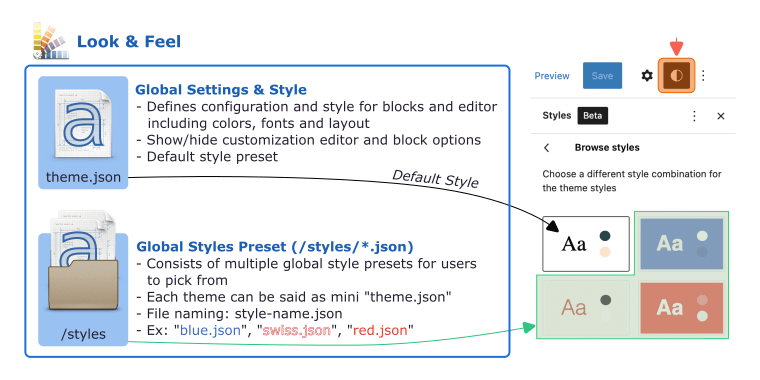
WordPress Block Theme, by default loads configuration and style for blocks (including built-in and custom theme defined blocks) from theme.json.
theme.json enable controlling settings globally and per block. It aims to provide a more consistence and complete experience. Typically, a theme.json consists of customTemplates & templateParts, global settings and styles for blocks and elements.
Support for custom CSS Properties
By phasing out IE11 support, many CSS features become available. One of these now available features is CSS Custom Properties. When a theme adds presets viatheme.json, the engine will enqueue both classes and CSS Custom Properties for them.
In addition to the default style defined into theme.json, it is possible to provide multiple global styles presets for user to pick from. These styles can be defined as JSON files inside /styles folder. Each one of these JSON file is a mini theme.json containing styles and settings that overrides any of the default theme.json settings or styles.
Developer Resources
theme.json:
https://developer.wordpress.org/block-editor/how-to-guides/themes/theme-json/
https://make.wordpress.org/core/2021/06/25/introducing-theme-json-in-wordpress-5-8/
Styles Preset:
https://developer.wordpress.org/block-editor/how-to-guides/themes/block-theme-overview/
Block Templates, Parts and Patterns
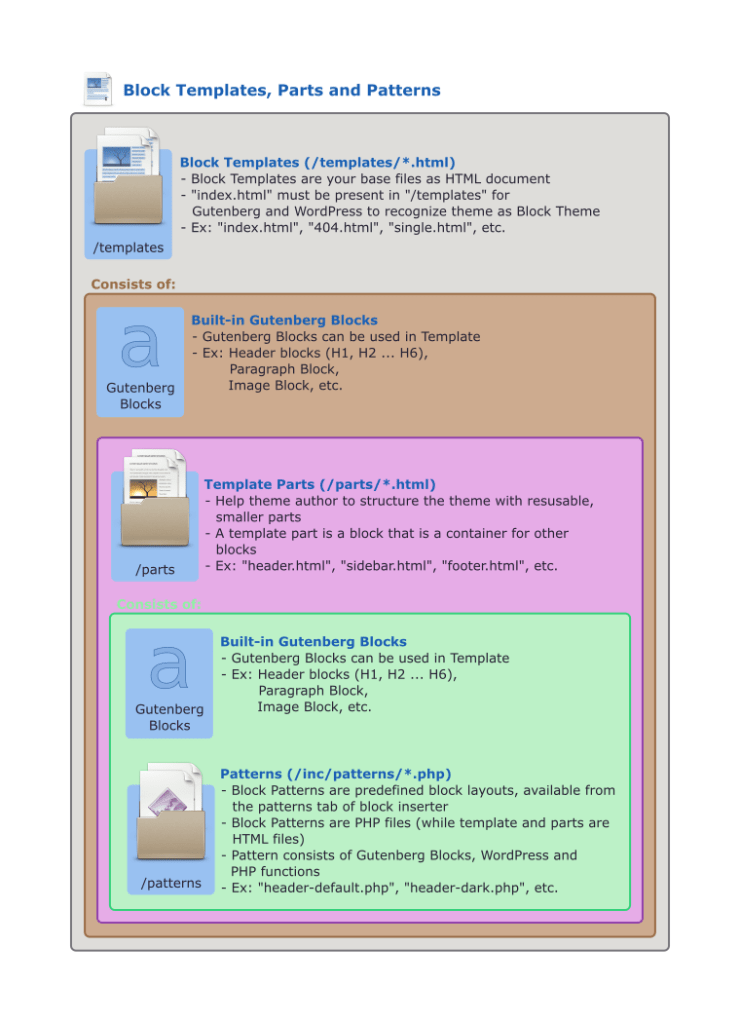
Block Template
A Block Template consists Gutenberg Blocks and Template Parts to form a template. index.html template must be present in /templates director for Gutenberg and WordPress to enable Block Theme support.
Usually, a template consists of:
- Header Part
- Query Loop (Gutenberg Block) (and/or custom Template Parts (defined in
theme.json)) - Footer Part

Templates can be edited by site editor, by clicking on the active template name (in Fig 3, “Home” button center on toolbar) and then selecting “Browse all templates”.
Block Parts (or Template Parts)
A Block Parts is a container for other blocks. Block Part help theme author to structure the theme into reusable parts like header, sidebar, footer, etc.
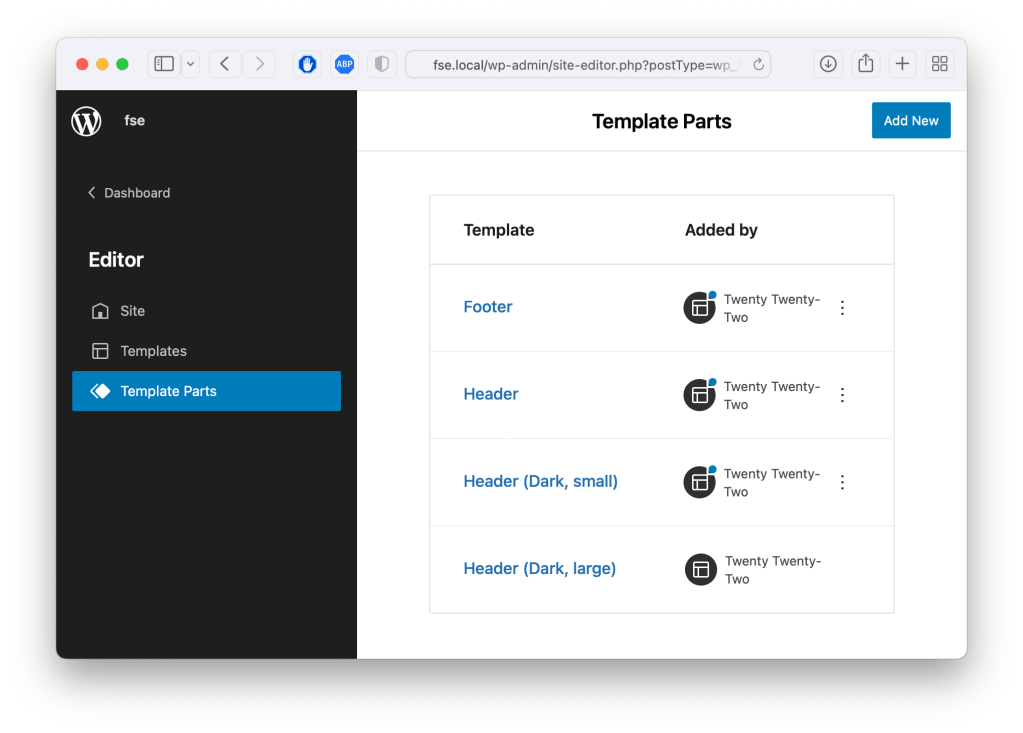
Block Parts can be edited in site editor by selecting “Template Parts”:
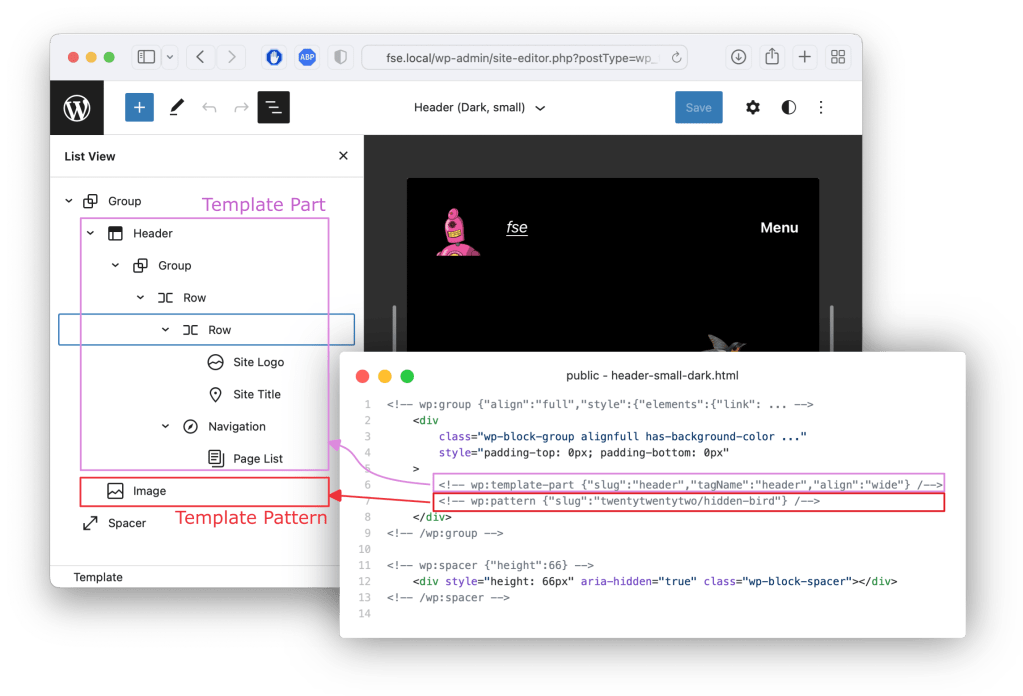
Usually, a Block Part consists of Gutenberg Blocks and Template Patterns and Parts:
Theme Initialization
A typical BlockTheme execution flow would consists of registering styles and available block patterns on initialization. Unlike, legacy WordPress Theme, initialization code should be present in function.php:
- Register Global Styles
wp_register_style- `wp_enqueue_style`
- Register Block patterns (for each pattern)
register_block_pattern_categoryregister_block_pattern
Starter template for Block Theme
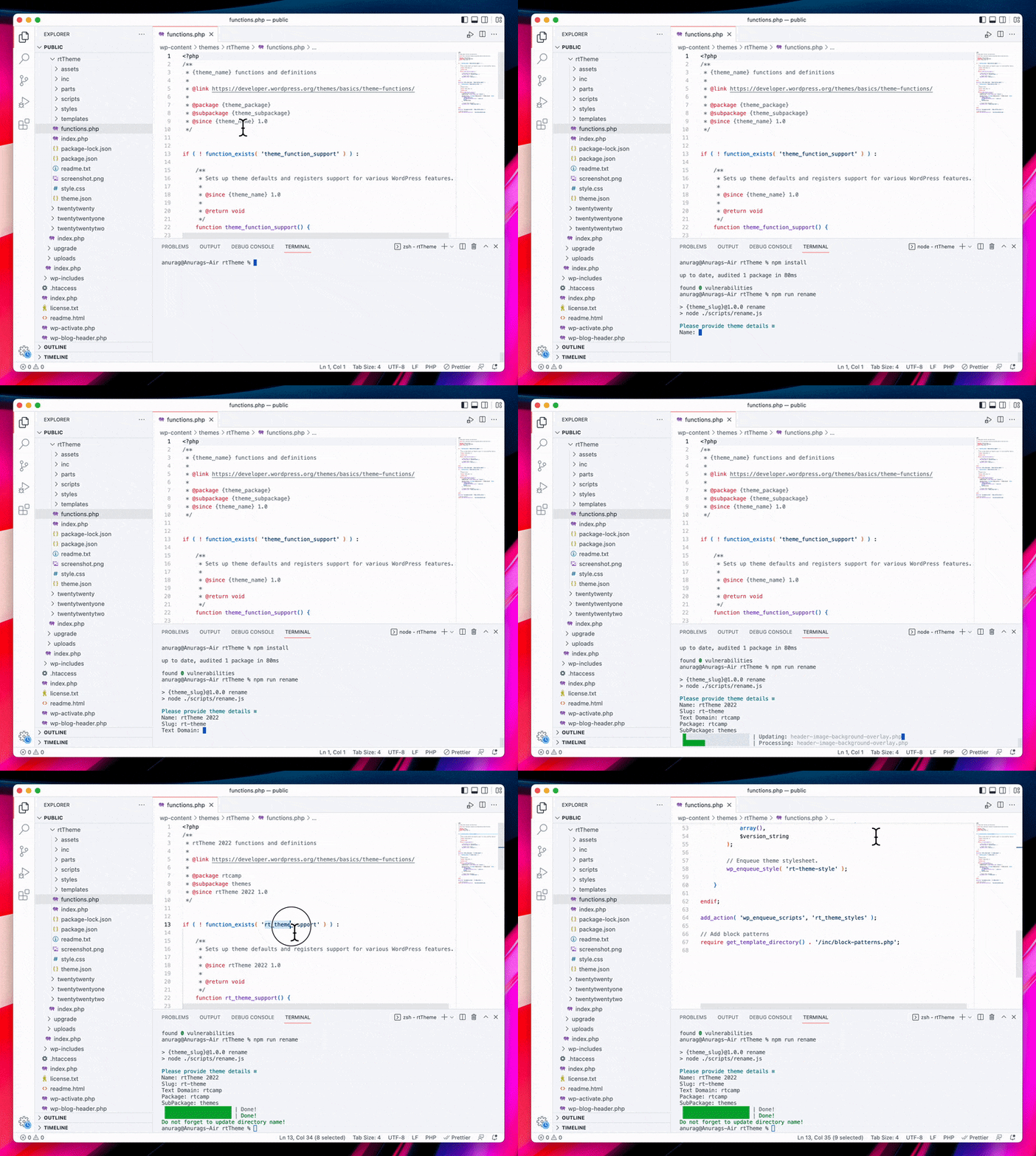
Starter template is nothing more than original source of the twentytwenty-two with an initialization script called rename to rename template with your new theme-name, slug, etc.
Clone starter template from: https://github.com/rtCamp/BlockTheme-Template and execute:
npm installnpm run rename
rename script will ask details for the theme and then renames:
- Theme Name
- Theme Slug
- Theme Text Domain
- Theme Package
- Theme Sub-Package
- Theme Function Name
 AnuragVasanwala
Leave a comment